
eSim will be instantly delivered via email! 📧
How to Set Up an eSIM for Albania
Step-by-step instructions for iPhone, Samsung, and Pixel — plus a full troubleshooting guide for when things don’t connect.
Albania eSIM Travel Guides
> eSIM Setup Guide
Setting up an eSIM for Albania takes about two minutes. But if you’ve never used one before, the process can feel confusing — especially when you’re dealing with terms like “data roaming” and “default data line.”
This guide walks you through every step, from buying your plan to connecting in Albania. Plus a full troubleshooting section for when things don’t work as expected.
Before You Start: 3 Things to Check
Is Your Phone eSIM-Compatible?
- iPhone: XS, XR, and all newer models (2018+)
- Samsung: Galaxy S20+, Z Flip/Fold series, A54+
- Google Pixel: 3a and all newer models
- Others: Huawei P40 Pro+, Xiaomi 12T Pro+, select OnePlus/Oppo
Not sure? Use Roamzi’s compatibility checker for instant confirmation. For a complete list of supported devices, see our Albania eSIM guide for tourists.
Is Your Phone Carrier-Unlocked?
A locked phone won’t accept a third-party eSIM. iPhone: Settings > General > About > look for “No SIM restrictions.” Android: Insert a SIM from a different carrier — if it connects, you’re unlocked. If locked, contact your carrier to request an unlock.
Do You Have WiFi?
You need WiFi to download and install the eSIM profile. Do this at home before your trip — don’t rely on airport WiFi.
1
Buy Your Albania eSIM Plan
Visit Roamzi’s Albania page and select a plan based on your trip. Not sure which provider to pick? See our Best eSIM for Albania 2026 comparison.
| Trip Length | Recommended Plan |
|---|---|
| 3–5 days, light use | 1GB / 7 days |
| 7–10 days, moderate use | 3–5GB / 30 days |
| 14+ days, heavy use | 10–20GB / 30 days |
Important
Each QR code can typically only be scanned once. Don’t delete the email, and don’t try scanning multiple times if it fails. Contact your provider’s support instead.
2
Install the eSIM on Your Phone
Do this at home on WiFi, ideally the day before your flight. Choose your device below:
iPhone
Samsung
Pixel
📱 iPhone Setup
- Open Settings
- Tap Mobile Data (or Cellular)
- Tap Add eSIM or Add Cellular Plan
- Tap Use QR Code
- Point your camera at the QR code from your email
- Tap Continue when the profile is detected
- Wait 10–30 seconds for download
- Label it “Albania Travel”
- Set Default Voice to your home SIM, Mobile Data to home SIM (for now)
- Tap Done
📱 Samsung Setup
- Open Settings
- Tap Connections
- Tap SIM Manager
- Tap Add eSIM
- Tap Scan QR code from service provider
- Scan the QR code from your email
- Tap Add when plan details appear
- Name it “Albania Travel”
- Toggle the eSIM ON
- Set home SIM as default for calls/SMS, leave data on home SIM for now
📱 Google Pixel Setup
- Open Settings
- Tap Network & Internet
- Tap SIMs
- Tap the + button
- Tap Download a SIM instead?
- Scan the QR code from your email
- Confirm and wait for download
- Name it “Albania Travel”
Can’t Scan the QR Code?
If the QR code is in an email on the same phone you’re setting up:
- Option A: Open the email on a laptop and scan from your phone
- Option B: Screenshot the QR code, then use “Choose from Photos”
- Option C: Use the manual activation code included in most provider emails
3
Configure Pre-Flight Settings
Before you fly, prepare your phone to avoid roaming charges and preserve your eSIM plan validity.
Turn OFF Data Roaming on Your Home SIM
This prevents your home carrier from charging roaming fees when you land.
iPhone: Settings > Mobile Data > tap home SIM > Data Roaming OFF
Samsung: Settings > Connections > Mobile Networks > select home SIM > Data Roaming OFF
Keep the eSIM Line Off (For Now)
Most plans start their validity timer when they first connect to an Albanian network. Keep it dormant until you land.
Download Offline Maps
Open Google Maps > Profile > Offline Maps > Select Your Own Map > draw a rectangle over Albania > Download (~250MB). Essential for mountain areas with limited signal.
4
Activate When You Land in Albania
Your plane has landed at Tirana International Airport. Here’s what to do:
Turn On the eSIM Line
iPhone: Settings > Mobile Data > tap Albania eSIM > toggle ON
Samsung: Settings > Connections > SIM Manager > toggle Albania eSIM ON
Enable Data Roaming on the eSIM — THE #1 MISSED STEP
Even though your eSIM plan covers Albania, your phone treats it as “roaming.” You must enable data roaming on the eSIM line.
iPhone: Settings > Mobile Data > tap eSIM > Data Roaming ON
Samsung: Settings > Connections > Mobile Networks > select eSIM > Data Roaming ON
This will NOT incur extra charges. Your plan already includes Albanian data. The toggle just gives your phone permission to connect.
Set eSIM as Your Data Line
iPhone: Settings > Mobile Data > Mobile Data (at top) > select Albania Travel
Samsung: Settings > Connections > SIM Manager > Mobile Data > select Albania Travel
🎉 Test Your Connection
Open your browser and load any webpage. If it loads, you’re connected and ready to explore Albania!
5
Manage During Your Trip
Monitor data, top up if needed, and switch back when leaving.
Check Data Usage
iPhone: Settings > Mobile Data > scroll down for per-app usage
Samsung: Settings > Connections > Data Usage
Most accurate: Log into your eSIM provider’s app or website to check remaining balance.
Top Up If Needed
Running low? Most providers let you add data without buying a new eSIM. With Roamzi, log into your account to top up instantly.
When Leaving Albania
- Turn OFF the Albania eSIM line
- Set your home SIM as the default data line
- Optionally delete the eSIM profile to free the slot for future trips. If you’re heading to Montenegro next, check our Albania-Montenegro road trip connectivity guide
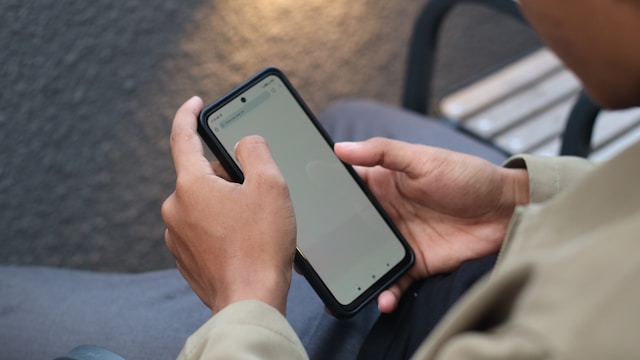
Troubleshooting: When Your eSIM Won’t Connect
Don’t panic. Most issues have a simple fix. Work through these in order — most travelers are connected within 2 minutes:
~40%
Fix 1: Toggle Airplane Mode
Turn Airplane Mode ON. Wait 10 seconds. Turn OFF. This forces your phone to re-scan for networks. Wait 30 seconds.
~25%
Fix 2: Check Data Roaming
Confirm Data Roaming is toggled ON for the eSIM line. This is the single most common mistake travelers make.
~15%
Fix 3: Verify Correct Data Line
Your phone might be using your home SIM for data. Go to Settings > Mobile Data and confirm the Albania eSIM is selected.
~10%
Fix 4: Restart Your Phone
Full power-off, wait 10 seconds, power on. Clears cached network settings.
Fix 5
Manually Select a Network
Settings > Mobile Data > tap eSIM > Network Selection > turn OFF Automatic > select “Vodafone AL” or “ONE Albania” manually. Vodafone has slightly wider coverage.
Fix 6
Disable VPN
VPNs can interfere with eSIM activation and data connections. Turn off temporarily, test, then re-enable once connected.
Fix 7
Check APN Settings
Most travel eSIMs auto-configure APN. If yours hasn’t, check the setup email for manual APN settings to enter.
Fix 8
Reset Network Settings (Last Resort)
iPhone: Settings > General > Reset > Reset Network Settings. Warning: forgets all saved WiFi passwords.
Fix 9
Contact Your Provider
If nothing works, contact support. Roamzi offers 24/7 support — even at midnight when your eSIM isn’t connecting.
Quick Reference Card
Save this for your trip:
📋 Albania eSIM Cheat Sheet
Before Your Flight
Buy plan → Receive QR code → Scan to install → Label “Albania Travel” → Turn off home SIM roaming → Download offline maps
When You Land
Turn on eSIM line → Enable data roaming on eSIM → Set eSIM as data line → Test connection
If It Doesn’t Work
Airplane mode toggle → Check data roaming → Check data line → Restart phone → Manual network select → Disable VPN → Contact support
Frequently Asked Questions
When should I install my eSIM — before or after arriving in Albania?
Install before your trip, at home on WiFi. Ideally the day before your flight. This way you’re ready to activate the moment you land, without needing airport WiFi (which is slow and unreliable).
Will enabling data roaming on my eSIM cause extra charges?
No. Your eSIM plan already includes data for Albania. The “data roaming” toggle simply gives your phone permission to connect to the local network. There are no additional charges.
Can I install an eSIM without WiFi?
You need some form of internet connection to download the eSIM profile. Once installed, activation in Albania doesn’t require WiFi — it connects directly to the cellular network.
What happens if I accidentally delete my eSIM?
Contact your provider. Most can re-issue the QR code. Do not try to re-scan the original — it typically only works once.
Can I keep my eSIM installed after leaving Albania?
Yes. Leave the profile on your phone and toggle it off. If you return to Albania, toggle it back on — though the plan may have expired depending on its validity period.
My eSIM shows “No Service” in Albania. What do I do?
Work through the troubleshooting steps above. Start with toggling Airplane Mode and checking Data Roaming. If still no service after all fixes, contact your provider’s 24/7 support.
Ready to get your Albania eSIM?
Buy your plan, scan the QR code, and land online. Two minutes of setup for a fully connected trip.
Last updated: February 2026. Setup steps may vary slightly depending on your phone model and OS version.
